Translate

2010年7月6日火曜日

ChartDroidの使い方を探す


Android上にいろいろグラフを表示させてみたくなり、
いろいろしらべてみた。

普通は、Google Chart APIをWebView上にのせちゃうのが
手っ取り早いのかな。
 まあある程度はサイズも決められるし、なにより簡単だ。

それでもいいけど、
もっと見栄えが良いのはないかな、
とGoogleで検索していると、
Google CodeにChartDroidなるライブラリがあるのを知る。

で、
http://code.google.com/p/chartdroid/
にいってみると、
なかなかよさげな画面ダンプが
何枚かあった。

ということでダウンロードしようとしたら..APKファイル?

開発で使えるのAPK..

しょうがないので、SubVersionを使って
ローカルハードディスクにソースを入れるべく、


svn checkout http://chartdroid.googlecode.com/svn/trunk/  chartdroid-read-only


を実行してチェックアウトした。

で、トップレベルのchartdroid-read-onlyを
Eclipseでインポートすると、
Chartdroidプロジェクト以外赤バッテンだらけに..

ほかのプロジェクト3つのビルドパスに

Cartdroidパッケージをインポートするようにかえて、
プロジェクトのクリーンをかけたら

赤バッテンが全部消えた。

Chartdroidパッケージを外部参照させるように
アプリのワークスペースをつくればいいわけだ。


あとは、サンプルコードがあればつくれるな。

この3つのプロジェクトがサンプルっぽいな

とおもっていたら、案の定サンプルだった。

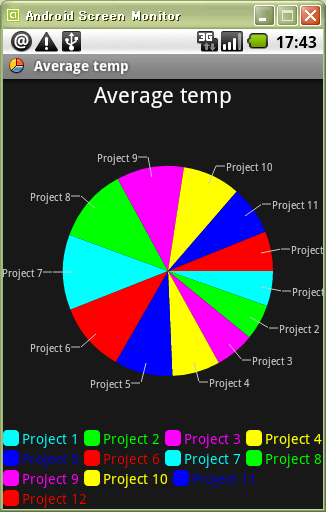
さがしてMinimalLineChartExampleを
実行してみると、
いくつかグラフを見ることが出来た。


※上のダンプはサンプルの一部

ほかのサンプルが動かない(強制終了)のは
1.6だからか..HT-03Aの限界なのか..

とりあえずこれらのサンプルをぱくって作って見ようか。


2010年5月25日火曜日

AndroidのGriViewにたくさんの画像を置く

平均500KBくらいのJPEG画像が8枚、
Amazon S3上においてあって、
これをAndroidのGridView上にサムネイルっぽく載せたかったのだけど..

OutOfMemoryでがんがん落ちる..

HT-03Aではせいぜい画像2枚までが限界で
それ以上だと画面遷移で3分以上かかってしまう..


Andoridは現在ヒープの上限を16MBにしている
というブログは読んだことがあるが、
実質データサイズ1MBくらいが限界のようだ。

で、Androidで処理するのはあきらめ、
Google App EngineにS3のデータを取得して
サムネイル画像に変換して返すサービスを1つつくって、
これをAndroidから使うように変更した。

かっこわるいがしょうがない。

これでグリッドを表示するのに3分30秒かかっていたのが
16秒に短縮し出来た。

Android玄人の皆さんはNDKを使うのかな..

2010年5月19日水曜日

GridView(Android)でページングする場合の更新方法


AndroidでGridViewをつかったページャをつくった。
各グリッドのイメージ表示にはBaseAdapterを継承して表示させている。このあたりはサンプルをGoogleって対応した。

GridViewへ画像データを表示させるのはサンプルが見つかったが、前ページ、次ページ画面のようなページングを行うためには、データが更新されたことをGridViewにつたえて再描画してもらわないといけない。

こういうときは、データを更新してから、
BaseAdapter#notifyDataSetChanged();
を次ページ・前ページボタン押下リスナ内に書いておけば
更新してくれる。

英語が苦手なので、このメソッドを見つけるのに3日くらいかかってしまった...

2010年4月15日木曜日

AndroidアプリからAmazon S3へファイルを格納する

Amazon S3上にAndroid側で作成したファイルをおきたくて、
S3のAPIドキュメントをよんでRESTClientでナントカつなげようとしたけど
うまくいかない..
たぶんAutorizationに設定する値が生だとだめなのかな..

で、なにか方法はないかなと調べてみると、

Amazon S3 Library for REST in Java

http://developer.amazonwebservices.com/connect/entry.jspa?externalID=132

を見つけた。

これを使えばいいけど

をAndroidManifest.xmlに登録しないといけない。

そうしたらうまくいった。

AWSAuthConnection conn = new AWSAuthConnection(
ACCESSKEYID,
SECRETACCESSKEY,
false, ←trueだとhttps
"s3.amazonaws.com", ←
CallingFormat.getSubdomainCallingFormat());

Response res = conn.put(
BUCKETPATH,←トップのバケット名
"hogehoge/test.txt",
new S3Object(imageData(バイト配列), null),
null);

これでOK。

2010年4月13日火曜日

エミュレータ開発で変になることありませんか?

これは、私のPCだけの現象なのだろうか..

Android開発をThinkPadX40上で行っているのだけど、
何度かエミュレータ実行を繰り返していると、
Installing なるログがでたっきり何も反応しない。
Eclipseはそのまま動作するので
すでにエミュレータ上に反映されているように見える。
なので、エミュレータ上のアプリを実行してみるのだけど、
これが前の状態のまんま..

エミュレータは上げっぱなしで再実行しているので
問題があるのかなあとおもい、
エミュレータを上げ直してみるけど、だめ。

しょうがないとおもいeclipseをとめると..
なんか突然エミュレータがおきてきた。

なんかメモリが足りなくて処理が止まっているかんじ?

しょうがないので
たまに変だなと思ったら
エミュレータだけでなくEclipseも上げ直している。

..非効率きわまりない..

2010年4月7日水曜日

Android開発環境構築時、platforms is missingと出てはまる

「Google Androidアプリ開発ガイド」を買って
開発環境を作ろうとして
SDKをダウンロードして展開して
SDK Setup.exe を実行したら
黒いウィンドウが出てしばらくして消えた。

できたもんだとおもい、
Eclipseへプラグイン導入して、
preference設定しようとしたら、
ダイアログが出て
「Error: platforms is missing」とでた。

たしかに私のSDKのディレクトリplatformsなんざない。

で、いろいろしらべてみた。
日本語サイトにはない。
AndroidサイトのFAQにもない..

えー、みんな困っていないのか!
俺だけ!!

しょうがないので
Android Beginners グループ(英語)
にはいって検索すること20分
やっとみつけたのが、これ。

http://groups.google.com/group/android-beginners/browse_thread/thread/351c86da7a84b052/a7c5a8ce7c2f3507?hl=ja&lnk=gst&q=platforms+is+missing#a7c5a8ce7c2f3507

ははあ、Zip解凍ツールが全部解凍し切れていないのか!

実は私はマイナーな Zelda というシェアウエアを購入して
使っている。
普段はそういう問題はでないのだけど、
SDKを解凍する際エラーになって途中で解凍が止まっていたのだろう。

そら、どこにもないわなあ..
メジャーなLhasaを入れて、解凍したら..
platformsディレクトリ..あんじゃん...


..疲れた..

Android開発者の道は、険しく遠い..

2010年3月30日火曜日

Google Wave ロボットを試そうとしてはまる

Google Waveで遊ぼう!

というサイトがあったので、
ためしてみようとオウム返しロボットを作ろうとしたら..

gsonパーサにかわっていたのはいいとして、
あれAbstractクラス名がかわっている..

あれ、メソッドがない..

あれ、エラーがでてうごかない..

バージョンもかわっている..


だだはまり。
現在格闘中。

2010年2月15日月曜日

Configuring Your Customer Gateway: Amazon VPC getting Started Guide p28

Configuring Your Customer Gateway
Customer Gatewayの設定

At this point, your integration team has created several VPC objects and in return received information that your network engineering group should now use to configure the customer gateway. They need:
この段階で、いくつかのVPC オブジェクトを作成し、ネットワーク技術グループにCustomer Gatewayを設定してもらえる情報を取得しています。ネットワーク技術グループは以下の情報を必要としています:


・The table of network information (see Determining Your Network Information (p. 22))
ネットワーク情報テーブル(Determining Your Network Information(p22)参照)
・The configuration information returned from the ec2-create-vpn-connection command
ec2-create-vpn-connectionコマンドが返却した設定情報

・The Amazon Virtual Private Cloud Network Administrator Guide
Amazon Virtual Private Cloud Network Administratorガイド(別のPDF)

The network engineering group must notify your team when the configuration is complete before you can continue. Once they notify you, the next task is to attach the VPN gateway to the VPC.
ネットワーク技術チームが設定を完了しないうちに、作業を継続することはできません。設定完了の確認後、VPN gatewayをVPCへ割り当てる次の作業を行ってください。


..えー、これでおわりかよ。
でも各ルータの設定を全部書くのは無理か..

Amazon VPCに対応するIPsecルータ

ここまで読むと、
少なくとも
・Cisco IOS 12.4以降のCiscoルータ
・JunOS9.5以降のJuniper J-Seriesルータ
はCustomer Gateway(Amazon VPCと接続できる企業側のルータ)として
つかえるってことか。

どちらかであれば、対応するルータ設定情報を出力してくれるコマンドがあるらしい。

そうでないルータ、
たとえば家庭用ルータのNATを切ってVPN設定するしかない。
freeswan入れたLinuxボックスとかもそうか。

特定のルータにあった設定をはかせるには
stylesheetでXSL書いて引数に渡せばいいのだろうが、
そんな面倒なことは..企業ならオペミス防ぐために使うか..

でも、なんでいまごろIPsecかね。
L3でVPNしたかったからかな。


家庭用ルータで簡単設定でAmazon VPCと
つなげられるのならご家庭のサーバをAmazonで使えるのにねえ..


そんな、家庭イヤ?!

How to Create a VPN Connection: Amazon VPC Getting Started Guide p 26

How to Create a VPN Connection
VPN接続作成方法

The last object to create is your Amazon VPC VPN connection, which is the secure communication path between your VPC and your data center.
最後にAmazon VPC VPN接続オブジェクトを作成します。
VPN接続は、VPCとデータセンタとのセキュアな接続パスを指します。


When creating a VPN connection, you provide the VPN gateway ID, the customer gateway ID, and the type of VPN connection (ipsec.1). The response includes a VPN connection ID and information your network engineering group needs in order to configure your customer gateway. In the request, you can specify one of the following formats for the configuration information:
VPN接続作成する際に、VPN gateway ID、Customer Gateway ID、VPN接続タイプ(ipsec.1)を指定します。返却情報として、VPN接続ID、Customer Gatewayを設定するときに必要な情報が含まれています。設定情報のための以下の型を特定することができます。


・generic: A generic format not specific to any particular vendor
generic:ベンダが特定できない場合の汎用的な型

・cisco-ios-isr: For Cisco Integrated Services routers running Cisco IOS 12.4 (or later) software
cisco-ios-isr:Cisco IOS 12.4以降が動作しているCisco Integrated Services製ルータ

・juniper-junos-j: For Juniper J-Series routers running JunOS 9.5 (or later) software
juniper-junos-j: JunOS 9.5以降が動作しているJuniper J-Seriesルータ

Choose whichever format matches your customer gateway. The response includes the configuration information in the specified format.
Customer Gatewayにあった型を選択してください。返却情報は、特定の型の設定情報を含みます。


You need to give the returned configuration information to your network engineering group, so we suggest you redirect the output to a file, or copy and paste the information from the screen to a file.
帰ってきた設定情報をネットワーク技術グループへ連携する必要があります、そのためリダイレクトをファイルへ保存する、もしくはコピーアンドペーストしてファイルへ保存することを勧めます。


Tip
You can call ec2-create-vpn-connection or ec2-describe-vpn-connections to get the configuration information again if you need to.

Tip
必要があれば、ec2-create-vpn-connection か ec2-describe-vpn-connectionsを実行して設定情報を再度入手することができます。

To create a VPN connection
VPN接続の作成

・Use the ec2-create-vpn-connection command, specifying the particular format you need for the configuration information (generic, cisco-ios-isr, or juniper-junos-j).
設定情報取得のために必要となる特定の型 (generic, cisco-ios-isr, juniper-junos-jのいずれか)を指定して、ec2-create-vpn-connectionを実行する。

PROMPT> ec2-create-vpn-connection -t ipsec.1 --customergateway

customer_gateway_id --vpn-gateway vpn_gateway_id --format format VPNCONNECTION vpn_connection_id pending ipsec.1 customer_gateway_id vpn_gateway_id

Long configuration information...
設定情報が続く...

The response includes the unique ID for the VPN connection (e.g., vpn-44a8938f), the VPN connection's current state (pending), and the configuration information.
返却情報には、VPN接続のユニークなID(e.g. vpn-44a8938f)や競って情報が含まれています。


In the above example we don't show the returned configuration information because it's too long to easily show here. For examples of the configuration information returned, go to the Amazon Virtual Private Cloud Network Administrator Guide. The guide contains an example of the different formats that are available, as well as customer gateway diagrams that correspond to the examples.
あまりにも長いので、返却情報の例をすべて見せることができません。
Amazon Virtual Private Cloud Network Administrator Guideを参照することで、設定情報をすべて参照することができます。


Important
重要

Make sure to give the Amazon Virtual Private Cloud Network Administrator Guide to your network engineering group along with the configuration information returned from the ec2-create-vpn-connection call.
ネットワーク技術グループへ、ec2-create-vpn-connectioの結果と一緒に、Amazon Virtual Private Cloud Network Administrator Guideも提供していることを確認してください。


You still need to wait until the VPN connection's state is available before moving forward. You can get its current state from its description. Note that you only receive the configuration information in the response if you include the --format option with the desired format (e.g., cisco-ios-isr, etc.).
VPN接続のステータスがavailableになってから次へ進んでください。
--format 型(e.g. cisco-ios-isほか)を指定することで、返却情報に指定の設定情報のみ取得できるます。


To get a VPN connection's description
VPN接続詳細情報の取得

・Use the ec2-describe-vpn-connections command.
ec2-describe-vpn-connectionを使う

PROMPT> ec2-describe-vpn-connections

VPNCONNECTION vpn_connection_id available ipsec.1 customer_gateway_id vpn_gateway_id

Tip
The ec2-create-vpn-connection and ec2-describe-vpn-connections commands take a --format option or a --stylesheet option, which causes the response to include configuration information formatted according to a particular format of your choice (e.g., cisco-ios-isr), or XSL stylesheet of your own design. The corresponding Amazon VPC API operations (CreateVpnConnection and DescribeVpnConnections) instead automatically return the configuration information in a native XML format specific to Amazon VPC. You should always use the commands (instead of the corresponding API calls) to get the configuration information returned to you in a friendly format. If you're using the command line tools, but want to see the native XML format, set the --format option to xml.


Tip
ec2-create-vpn-connection や ec2-describe-vpn-connectionsは--formatオプションや--stylesheetオプションをつけることができ、特定の型のみの設定情報の取得や、独自のXSLスタイルシートを指定することができます。
対応しているAmazon VPC APIオペレーション(CreateVpnConnection や DescribeVpnConnections)は代わりにAmazon VPCを特定するためのネイティブなXML形式で設定情報を自動的に返却する。(対応するAPIコールの代わりに)親しみやすいフォーマットの設定情報を取得するコマンドを使用すべきです。
もしコマンドラインツールを使用するのではなくネイティブなXMLフォーマットで見たいのであれば--format オプションにxmlを記述してください。


You've created your Amazon VPC objects. The next task is to configure the customer gateway with the information from ec2-create-vpn-connection.
Amazon VPCオブジェクトを作成できました。次に、ec2-create-vpn-connectionにて取得した情報をもとにCustomer Gatewayを設定します。

How to Create a VPN Gateway: Amazon VPC Getting Started Guide p26

How to Create a VPN Gateway
VPN Gateway作成方法

The next object to create is your Amazon VPC VPN gateway, which is the anchor of your VPN connection on the AWS side. When creating the VPN gateway, you provide the type (ipsec.1).
次にAmazon VPC VPN gatewayオブジェクトを作成します。
VPN gatewayはAWS側のVPN接続のアンカーとなります。
VPN gateway作成時に、タイプ(ipsec.1)を指定します。


To create a VPN gateway
VPN gatewayの作成

・Use the ec2-create-vpn-gateway command, and specify the type (ipsec.1).
タイプ(ipsec.1)を指定してec2-create-vpn-gateway コマンドを使う

PROMPT> ec2-create-vpn-gateway -t ipsec.1

VPNGATEWAY vpn_gateway_id pending ipsec.1 us-east-1a

The response includes the unique ID for the VPN gateway (e.g., vgw-8db04f81). Copy and paste that value somewhere because you will need it. The response also includes the current state of the VPN gateway (pending) and the VPN gateway's Availability Zone. You need to wait until the VPN gateway's state is available before moving forward. You can get its current state from its description.
返却情報には、VPN gatewayの一意なID(e.g. vgw-8db04f81)を含んでいます。
後で使用するためコピーアンドペーストして保管しておいてください。
ほかに、現在のステータス(pending)、VPN gatewayのAvailability Zoneなどが含まれています。
VPN gatewayのステータスがavailableになるまで、次の作業に進まないでください。
VPN gatewayのステータスは、詳細情報を参照することで取得できます。

To get a VPN gateway's description
VPN gateway詳細情報の取得

・Use the ec2-describe-vpn-gateways command.
ec2-describe-vpn-gatewaysコマンドを使用する

PROMPT> ec2-describe-vpn-gateways

VPNGATEWAY vpn_gateway_id available ipsec.1 us-east-1a

【ハーネスエンジニアリングを始める前に】gpt-oss:20b の入出力データから、LLMの動作を理解する

  1. はじめに 最近は、 Cursor や Antigravity などのAIエージェント前提の統合開発環境や、 Claude Desktop や Codex アプリ などのPC上のオブジェクト操作が可能なデスクトップアプリ、 Open Claw といったPC全体の...